
Mermaid is a JavaScript library that allows you to describe diagrams using text and code – essentially when used with Visual Studio code and the nifty Mermaid Markdown Preview addon you can write and preview your Mermaid markdown directly in the VS Code markdown preview view.
To extend your Mermaid usage to your Ghost blog you will need to add a bit of code into the injection section of Ghost. Essentially we will use the unpkg hosted version of the prebuilt mermaid library:
https://unpkg.com/mermaid@<version>/dist/You can find the most recent version on the mermaid site or from the mermaid Github repository.
Replace <version> with the desired version number the latest at the time of writing: https://unpkg.com/browse/[email protected]/
For example:
https://unpkg.com/[email protected]/dist/mermaid.min.jsIn the Ghost admin panel on the "Menu", click "Settings", and then "Code Injection" and add the following two script tags to the "Site Header" text box.
Code added into the "Site Header" or "Site Footer" fields will be injected into the <head> and <footer /> tags on every page of the blog.
<script type="text/javascript" src="https://unpkg.com/[email protected]/dist/mermaid.min.js"></script>
<script type="text/javascript">
    mermaid.initialize({startOnLoad:true, theme: 'dark'});
 </script>
The first loads the library from the unpkg CDN and the second initializes mermaid. Notice that when we initialize we are telling mermaid to startOnLoad, additional configuration values (and their defaults) can be found in the mermaid documentation. After adding your code, click on the "Save" button.
In order to actually create a diagram create a new HTML element using the HTML Widget
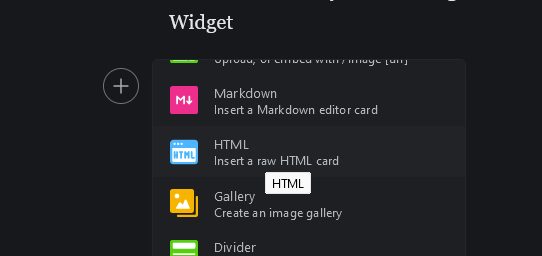
and add a new div with the mermaid class:
<div class="mermaid">
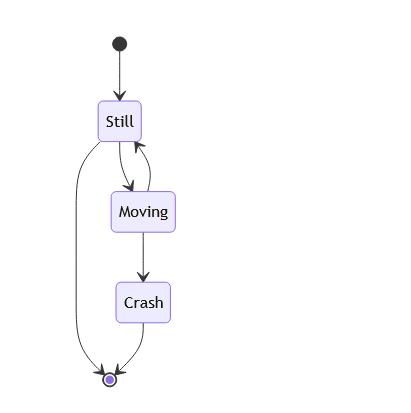
    stateDiagram-v2
        [*] --> Still
        Still --> [*]

        Still --> Moving
        Moving --> Still
        Moving --> Crash
        Crash --> [*]
</div>
Which when previewed or published should render
That's it!